View Scan Details and Link Orders
Every ID scanned with the Real ID POS tile is saved to your Real ID app. You can open any scan to see everything read from the ID, and find the order it was taken for.
If a scan isn't linked to its order, you can link it yourself. Real ID then tags the order and customer the same way it does for scans that are linked automatically.
Find your scans
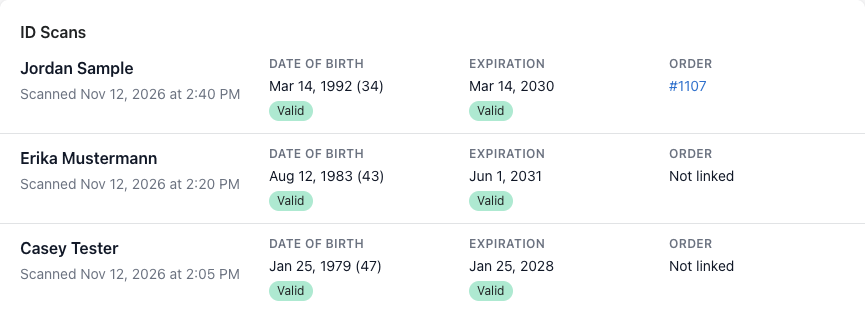
In your Shopify admin, open the Real ID app and select POS in the menu. The ID Scans list shows your passed scans, newest first.
Each row shows the customer's name, when the ID was scanned, the date of birth and the expiration date. The Order column shows the order the scan is linked to. Select the order number to open that order.
View a scan's details
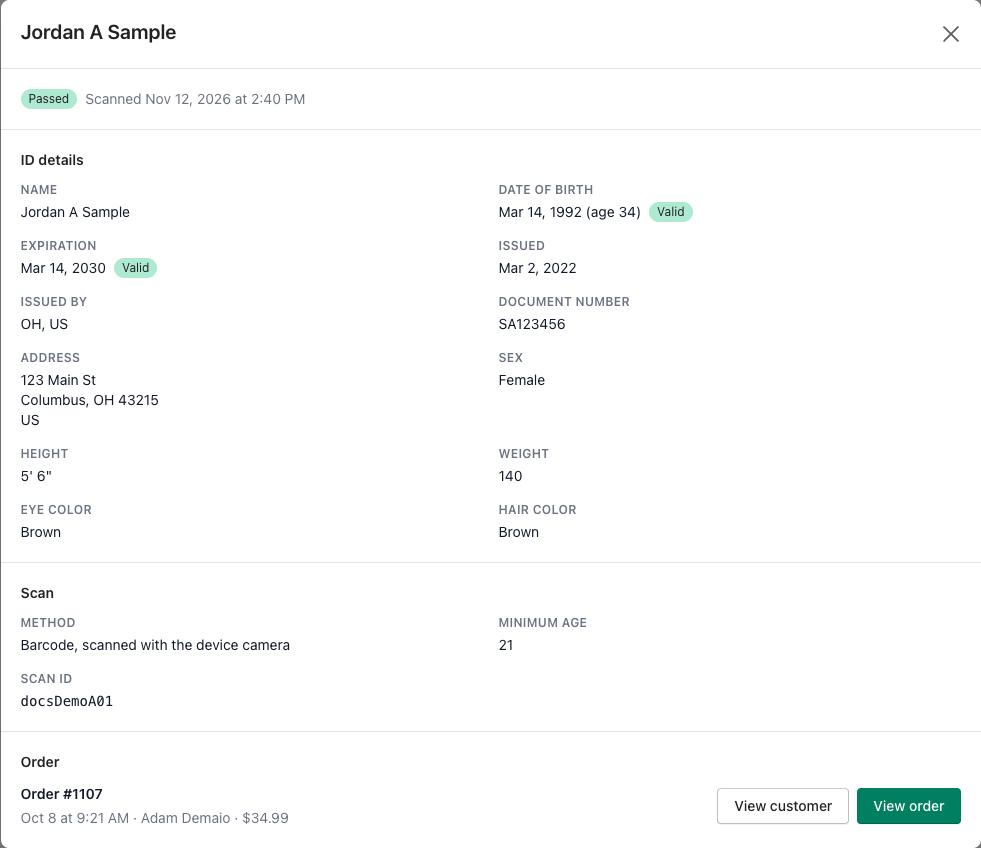
Select a scan in the list to open its details:
- ID details: everything read from the ID, including name, date of birth, expiration and issue dates, issuing state, document number, address and physical description.
- Scan: how the ID was scanned (with the device camera or a handheld barcode scanner), the minimum age it was checked against, and the scan ID.
- Order: the order the scan is linked to, with its date, customer and total. Select View order or View customer to open them in your Shopify admin.
The scan ID is also the one printed on receipts if you print the scan ID on POS receipts.
Link a scan to an order
Real ID links a scan to its order automatically when the cashier scans the ID during the sale. A scan can end up without an order if, for example, the cashier scanned the ID to check the customer's age and then rang up the sale separately.
To link it yourself:
- Select the scan in the ID Scans list.
- Under Order, find the order:
- Orders placed around the time of the scan are listed first. POS orders have a POS label.
- If the order isn't listed, search by order number or customer name.
- Select Link next to the order.
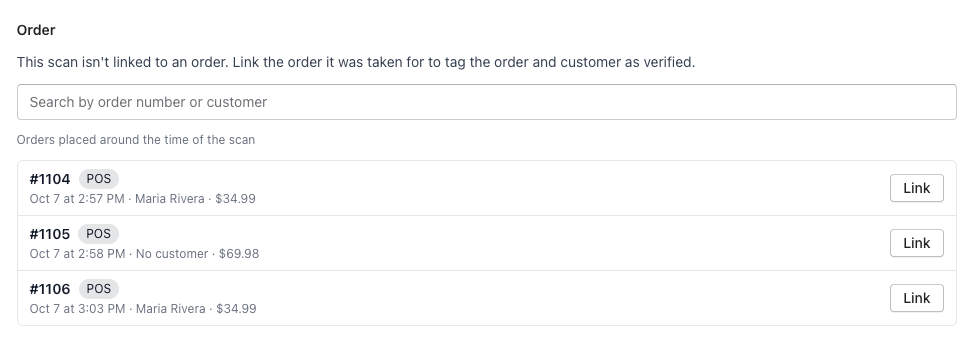
The scan is now linked, and the order number appears in the ID Scans list.
What happens when you link an order
Linking an order does the same things as an automatic link:
- If the ID passed, Real ID tags the order and its customer with
ID scanned (POS)and sets their metafields. The order needs a customer for this. See Automatic tagging and metafields. - If you use Shopify Flow, the POS ID scanned trigger runs.
Things to know
- A linked scan can't be moved to a different order. If you linked the wrong order, contact us and we'll fix it.
- The scan ID won't print on that order's receipts. Receipts get the scan ID from the cart at the time of the sale, and an order can't be changed to add it afterwards. That includes reprinting the receipt. The scan is still linked in Real ID, and the order is still tagged. See Print the scan ID on POS receipts.
- You need permission to manage ID checks in Real ID to link orders.
- You need access to orders in your Shopify admin to see and search orders. Without it, the order section shows an error instead.