Specific products
You may only require ID verification for an order if the order contains one or more specific products.
- Shopify
- WooCommerce
- BigCommerce
- Custom
You can specify which products require ID verification, or even a whole collection of products in your Shopify store.
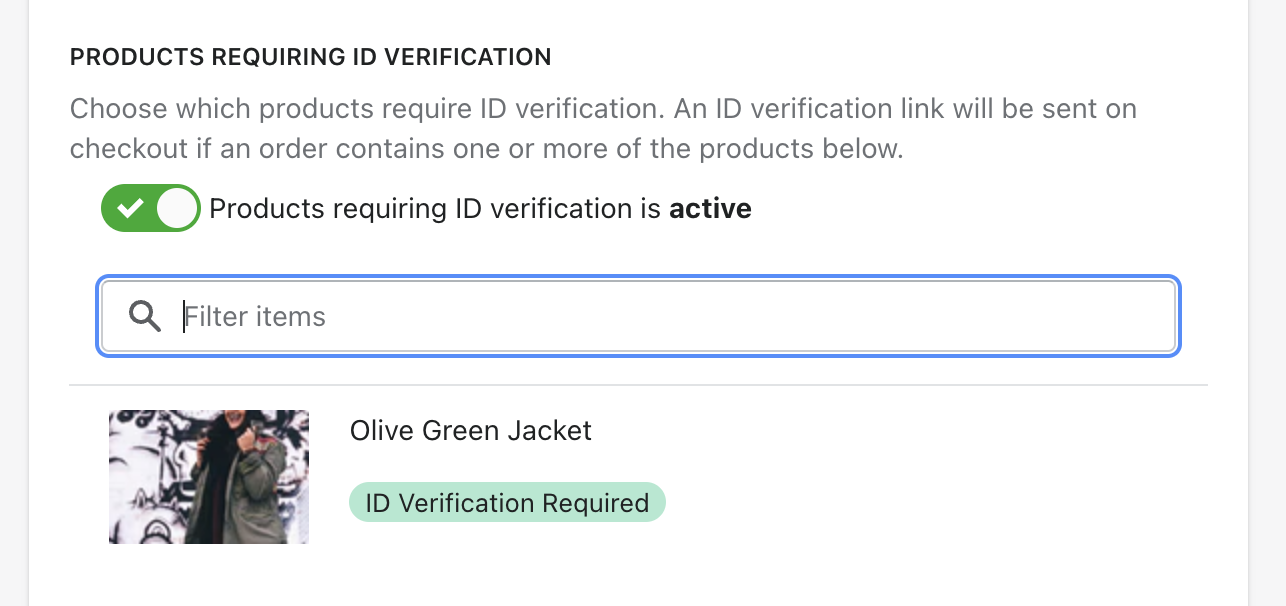
To get started, open the Automations tab in the Settings page. Then scroll down towards the bottom of the page to view the Products filter.
Click the toggle beneath the Collections tab to activate the filter, then search for your collection. Click on the collection to require ID verification on orders containing one or more products from this collection.

Real ID will automatically track new products added or removed from this collection. So you won't need to manually add products one by one to Real ID.
We recommend that you create a separate ID verification collection that you can easily add products to. Real ID will automatically sync to collection changes so it's always kept up to date.
Within the Automations area of the Settings page, scroll down the to Filters section to see the products filter:

To enable ID verification on a specific category of products for example, click the toggle under the Categories then enable the feature, and click on a collection. Clicking on the collection will require ID verification if the customer's cart contains one or more products from this categories selected.

Lastly, don't forget to click Save in the upper right hand corner of the page to save your changes.
Within the After Checkout Triggers section of the Settings page, find the Specific Products toggle. Enable it and select the product categories that should require ID verification.
When an order contains one or more products from a selected category, the customer will be prompted to verify their ID.
This trigger is also available in the before checkout flow. When used with the before checkout flow, customers will only be prompted to verify their ID if their cart contains products from the specified collections or categories.