Expired ID Policy
You can control how Real ID handles expired ID documents during verification.
By default, Real ID will reject any ID that is expired at the time of verification. If your business needs to accept recently expired IDs or skip expiration checks entirely, you can configure this in your settings.
Setting an expired ID policy
To configure your expired ID policy, open the Settings page and open the Rules tab.
Scroll down to the Expired IDs section. You'll see three options:
Reject expired IDs
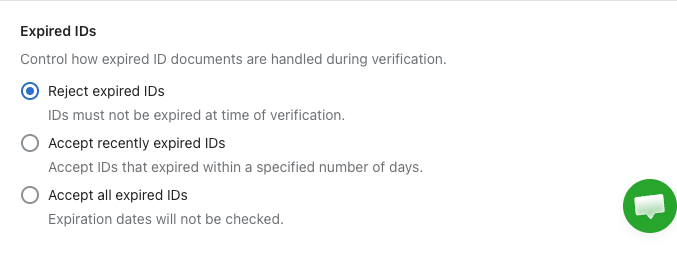
This is the default setting. Any ID that is expired at the time of verification will be automatically rejected. This is the most restrictive option and is recommended for most stores.
Accept recently expired IDs
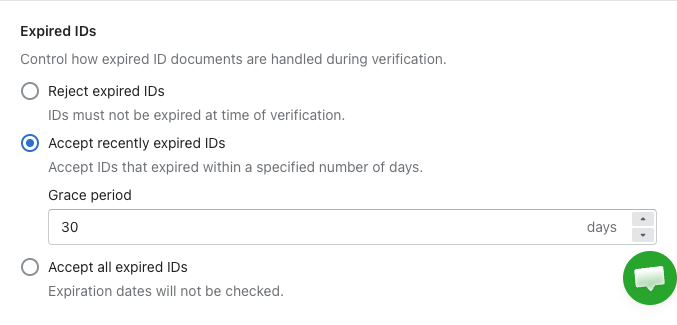
Accept IDs that expired within a grace period you define. For example, if you set a grace period of 30 days, an ID that expired 15 days ago would still pass verification, but one that expired 45 days ago would be rejected.
This is useful for businesses where customers may have recently expired IDs while waiting for a renewal, and the slight expiration doesn't pose a meaningful risk.
Accept all expired IDs
Expiration dates will not be checked at all. Any ID will pass regardless of its expiration status.
This setting only affects the expiration date check during verification. All other checks (face match, age verification, cross-checking, etc.) still apply normally.
Frequently asked questions
Which plan do I need?
The expired ID policy setting is available on the Essential plan and above.
Does this apply to manually sent ID checks?
Yes, the expired ID policy applies to all ID checks, including those sent manually.
What happens to existing checks if I change this setting?
Changing the policy only affects future ID verifications. Previously completed checks are not re-evaluated.