ID verification during checkout
Using Real ID's app blocks for your Shopify checkout page, you can require ID verification at any point during the checkout process. Customers will be required to verify their ID before they can submit their order.
This short video shows you how to set this up on your Shopify store step by step:
Your Shopify checkout must upgrade to Shopify Checkout Extensibility to use this ID verification flow.
At this time only Shopify Plus stores have access to checkout customizations through app blocks. If you do not have a Plus subscription, but require customer ID verification before purchase consider our before checkout flow instead.
Setting up Real ID
To get started, first open the Real ID app. Then open the Settings page.
Enable automatic verification in the Triggers tab, then select the Shopify Checkout Extensibility tab to view the available options.
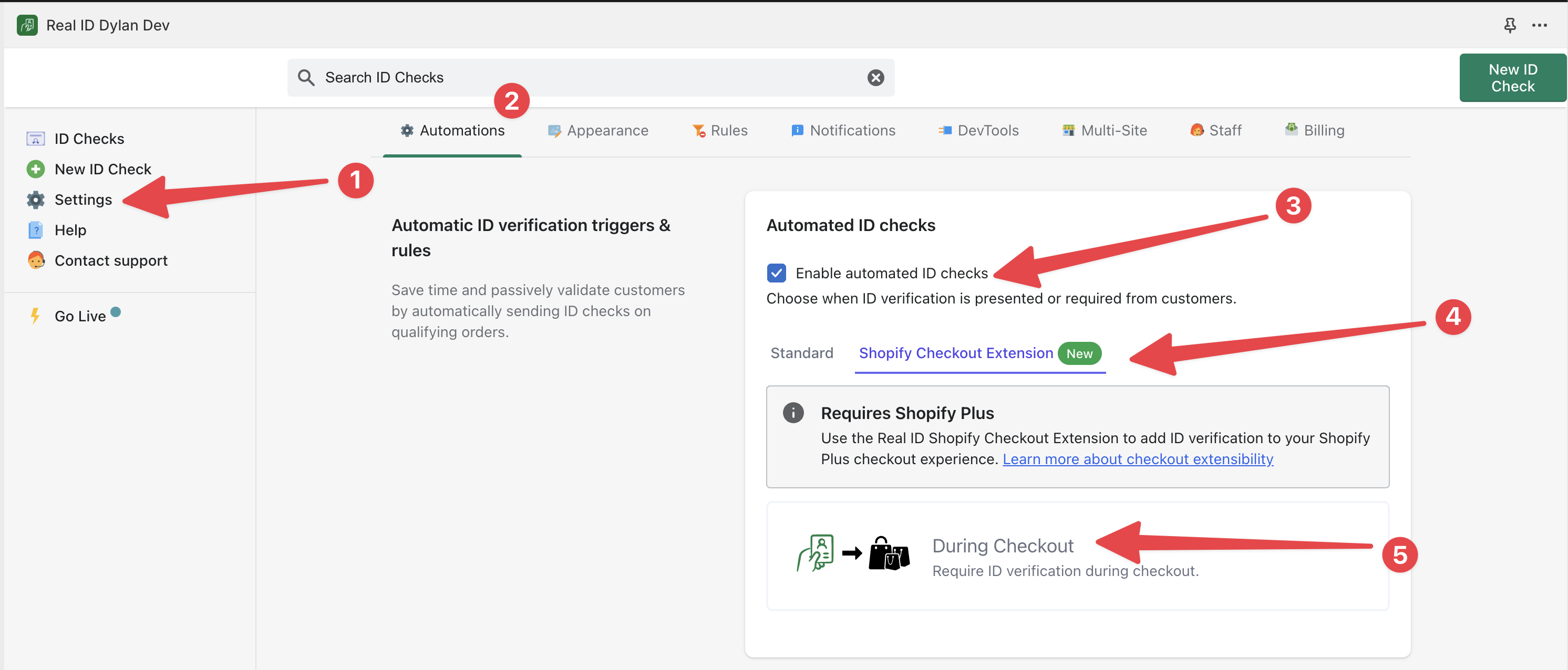
Then select During checkout option. Don't forget to click Save in the top right of the Real ID app to apply the flow.
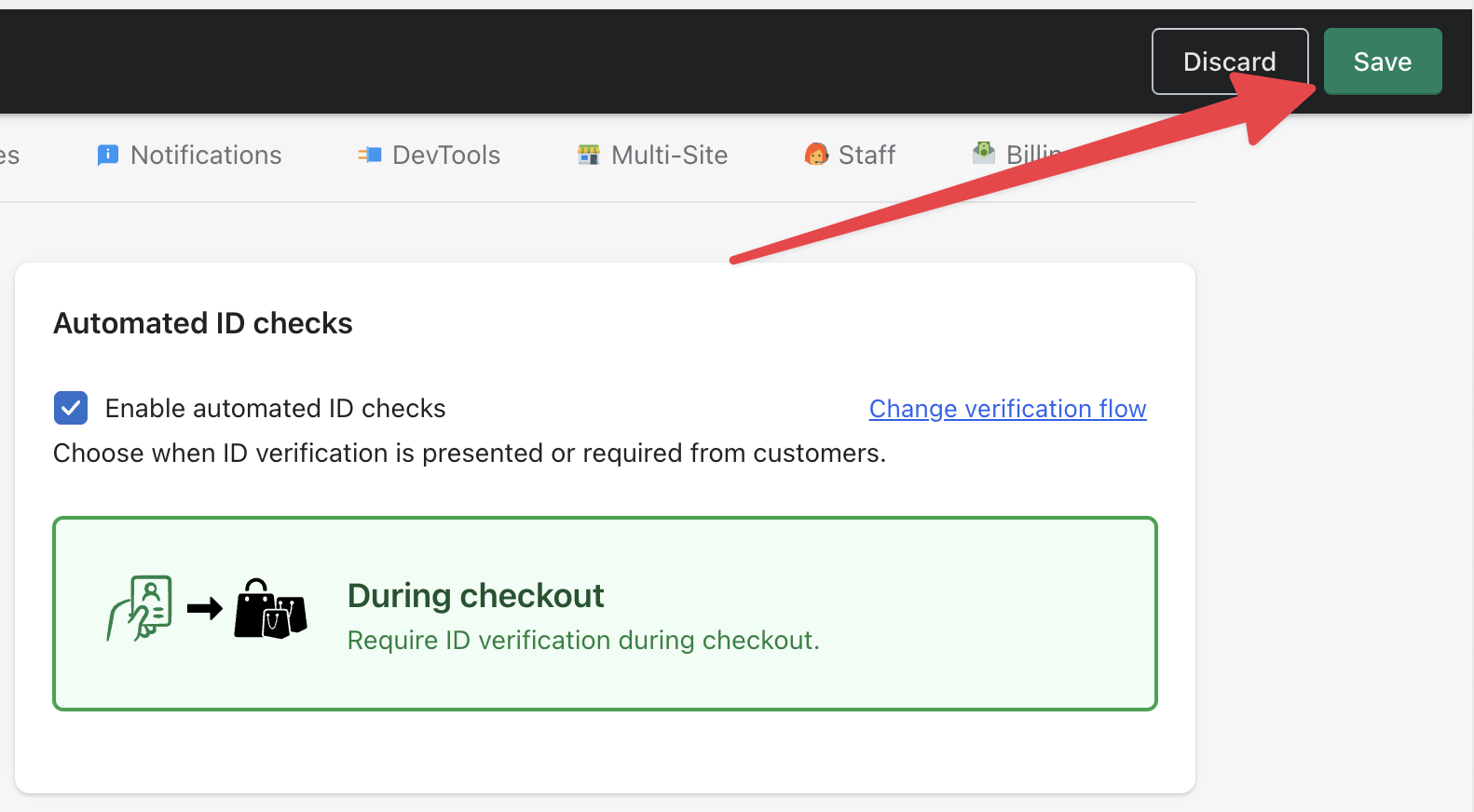
Adding the ID verification app block to your theme
Now open the Online Store channel in Shopify, click the Theme section and click Customize to open the theme editor.

With the theme editor open, click the page dropdown and select the Checkout page.
Then at the bottom of the page, you'll see a button to Add app block, click this to view all available app blocks.

Click the ID verification app block to add it to your checkout page.

Make sure the Enable app to block checkout option is checked. Otherwise the app block will not be able to block unverified customers from checking out.
Now that the app block is added to your checkout, Real ID will automatically require unverified customers to complete ID verification before continuing through the checkout flow.
Logged in verified customers will not be required to complete ID verification.
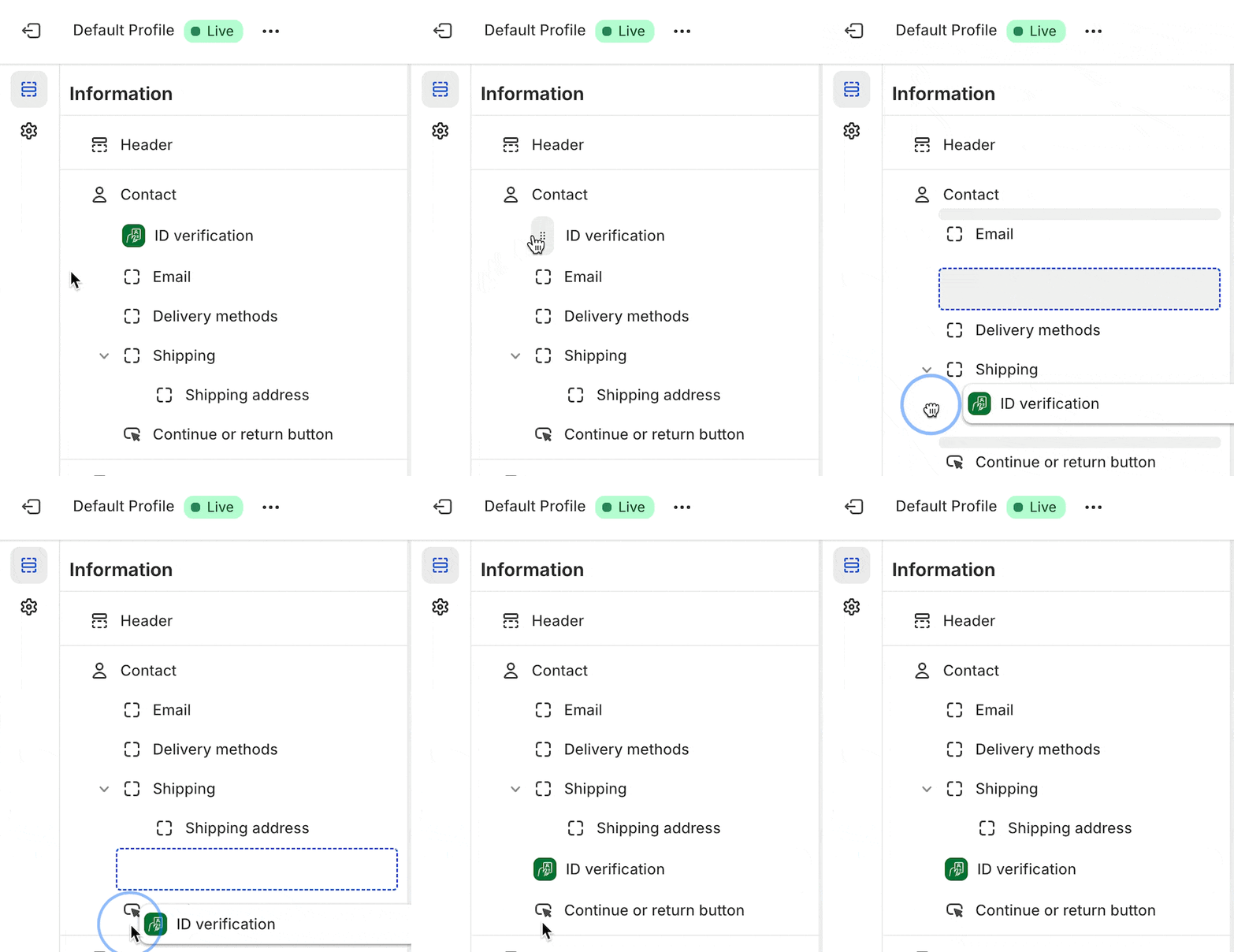
If you'd like to change the position of the ID verification prompt in the checkout page, simply hover over the app block and drag it up or down between the other checkout blocks.
How it works
When a customer reaches checkout, Real ID looks at their cart and checkout details to decide whether ID verification is required. If it is, they're prompted to verify before they can place the order.
What triggers an ID check
Real ID checks each checkout against your triggers — for example:
- Specific products or collections in the cart
- A high-value order above your price floor
- Shipping to specific U.S. states or regions
You can also combine conditions with AND/OR logic using Advanced rules (Automate and Protect plans) — for example, requiring verification only when a restricted product ships to a specific state.
If nothing matches, the customer checks out as normal. If something matches, they verify before placing the order. Logged-in customers — and customers Real ID recognizes by email — skip verification when they've already passed.
Passing or failing your rules
After the customer submits their ID photos, Real ID checks them against your rules — age, face match, document expiry, and address or name cross-checks. Customers who pass can place their order right away. If a check fails, the order is held for manual review, where a staff member can approve or reject it.
When emails are sent
- When verification is required — the customer can get an email with a link to verify, in case they leave checkout before finishing.
- When the check passes — the customer gets a confirmation, and your team gets a notification that the ID was verified.
- When the check fails — the customer is told their verification needs review, and your team gets a warning email with the reason.
You can turn any of these customer emails on or off in the Notifications area of your Settings.
When tags and metafields are added
- Metafields are written to the order as the customer verifies during checkout, so
real_id.verifiedandreal_id.check_idare already on the order the moment it's placed. - Tags and notes are added to both the order and the customer shortly after the order is placed. The customer tag is what lets Real ID remember repeat customers so they only verify once.
See Tags, Notes and Metafields for the full list.
Remembering already verified customers
By default this flow option will already remember verified customers. First the system will attempt to find their past verified ID by the customer's Shopify account, then it will attempt to find the customer's ID check based on the customers email address.
By Shopify account
The customer will need to be logged in in order for Real ID to detect their current verification status by their Shopify account.
Please make sure that your Shopify store allows customers to login to their accounts.
You can check this by opening the Settings section of your Shopify store, then opening the Customer Accounts area.

At the top of this section, you'll see the option to allow customers to login to their own accounts, make sure it's enabled. The option is labeled as Show login link in the header of online store and at checkout.
Then choose between Classic customer accounts or New customer accounts. Real ID is compatible with either choice.
The main difference between the two is that the New customer accounts choice will require the customer to open a link sent to their email address in order to login.
Whereas the Classic customer accounts allows email address and password combinations to login, which allows account sharing if you have the email address and password.
By email address
If the customer isn't logged in, then the system will attempt to find their past verified ID by the customers email address.
If any check is found by the customer's email address, then it will prompt the customer to confirm ownership of the email address through a confirmation code.
After the customer enters in their confirmation code, they will be recognized and allowed to complete checkout even without logging in.
Other platforms
The during checkout flow above uses Shopify's Checkout Extensibility and is only available for Shopify Plus stores.
If you need in-checkout ID verification on other platforms, you have two options:
- JS SDK: Use the Real ID JavaScript SDK with
mode: "modal"to gate any checkout button on any platform — including WooCommerce, BigCommerce, or custom sites. The SDK replaces the target element with an ID verification prompt and restores it after the customer is verified. - Before checkout flow: The before checkout flow works across Shopify, WooCommerce, and BigCommerce without any code changes. It replaces checkout buttons site-wide until the customer has verified their ID.
Frequently Asked Questions
Will ID verification be required for draft orders as well?
Yes, the same ID verification app block will appear for draft orders, even in the checkout links shared from the POS or from the Shopify Admin.
How can I restrict ID checks to specific shipping locations with specific products in the cart?
If you require ID verification for specific countries or regions only for specific products like knives, please contact us for support. We have custom triggers for this use case.
Can I still allow customers to check out, even if they've failed to verify their ID automatically?
Yes, in the ID verification app block in your checkout page in your Shopify theme, untick the Allow app to block checkout checkbox and then save your change.
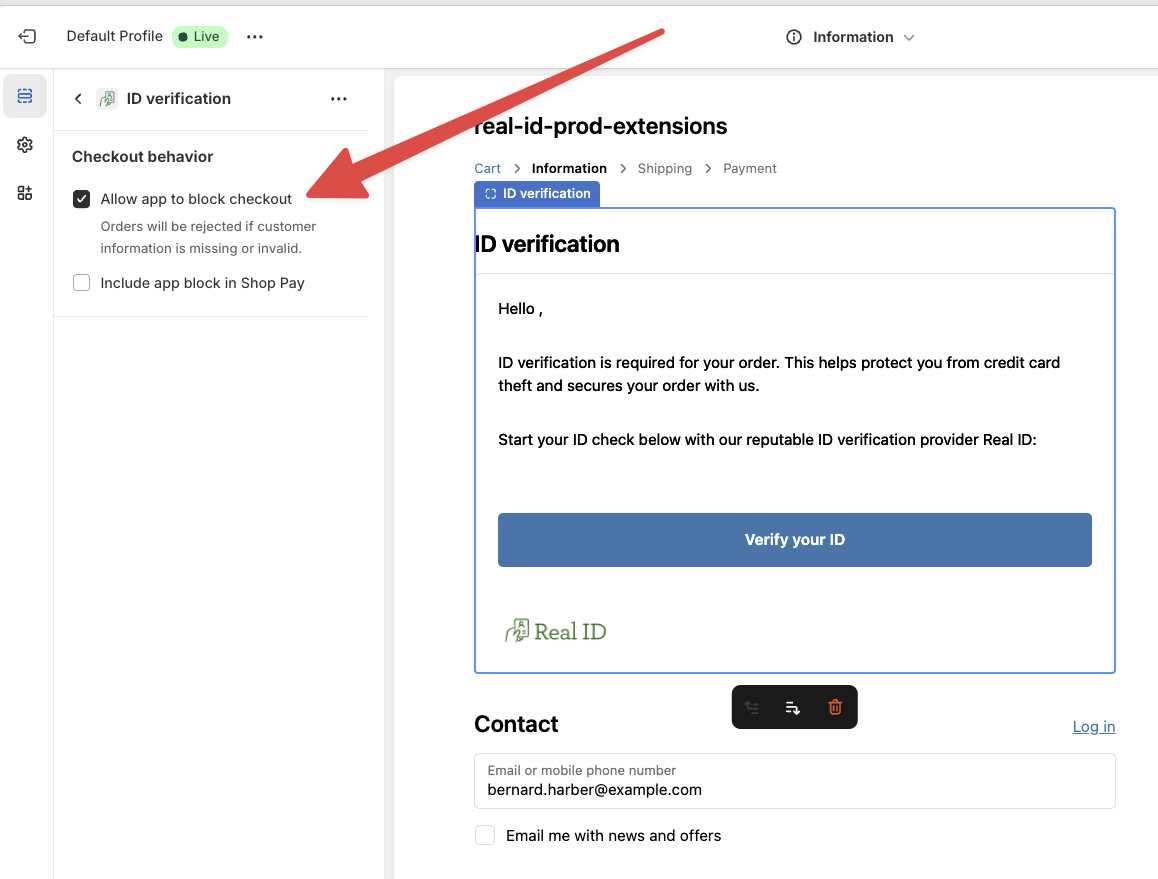
This will allow unverified customers to continue through to checkout.
If you choose to disable the ID verification requirement, it will also allow customers to checkout even if they do not upload any photos whatsoever.