Shopify Sidekick
Ask Shopify Sidekick about your ID checks without leaving the Shopify admin. Sidekick can look up whether an order or customer passed ID verification, explain why a check failed, list the checks that need your attention, and tell you which ID documents Real ID accepts in a country.
Sidekick is Shopify's AI assistant. Open it from the Work with Sidekick box at the top of your Shopify admin.
The Sidekick integration is available for Real ID on Shopify. It's turned on automatically when the Real ID app is installed. There's nothing to set up.
What you can ask
Ask in your own words. Mentioning Real ID in your question helps Sidekick pick the right app.
| You want to know | Try asking |
|---|---|
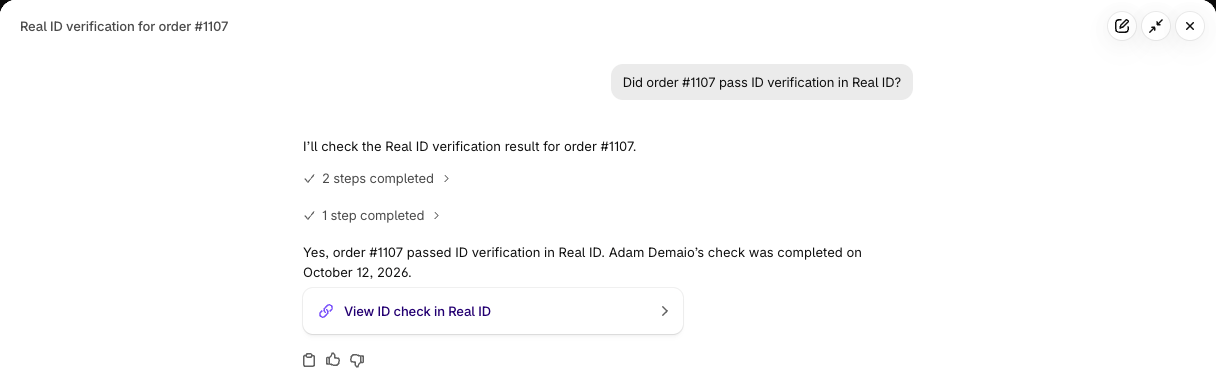
| If an order passed ID verification | "Did order #1107 pass ID verification in Real ID?" |
| If a customer is verified | "Has Jane Doe verified her ID with Real ID?" |
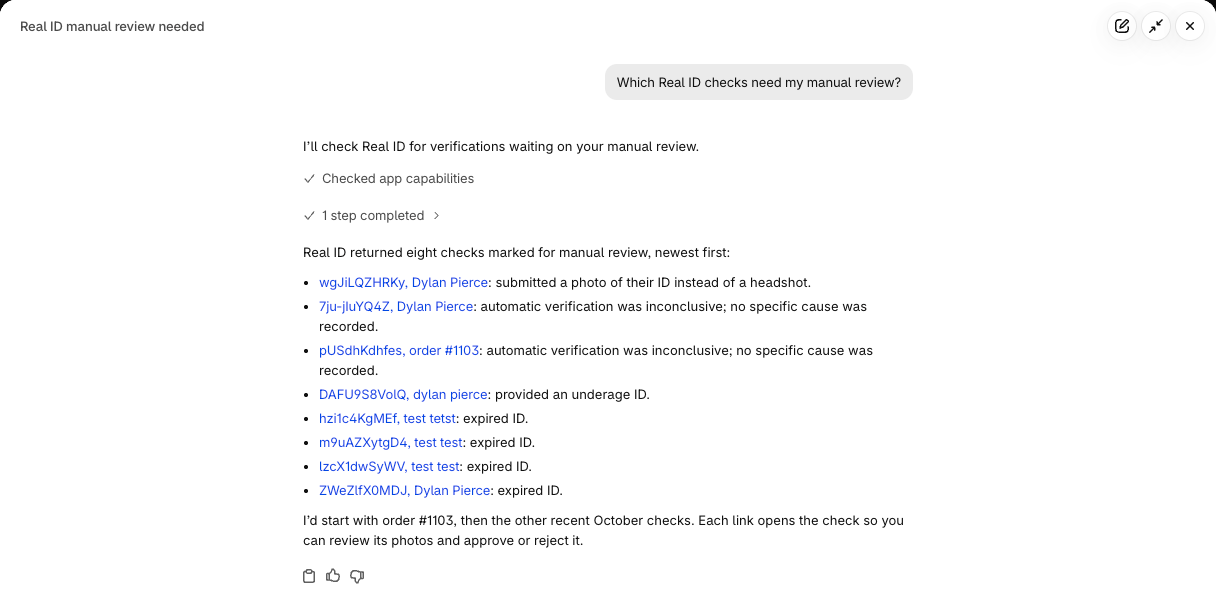
| Which checks need you | "Which Real ID checks need my manual review?" |
| Who hasn't finished verifying | "Which customers haven't finished their Real ID verification yet?" |
| Why a check failed | "Why did the ID check for order #1103 fail?" |
| Why checks fail in general | "Why are my Real ID checks failing?" |
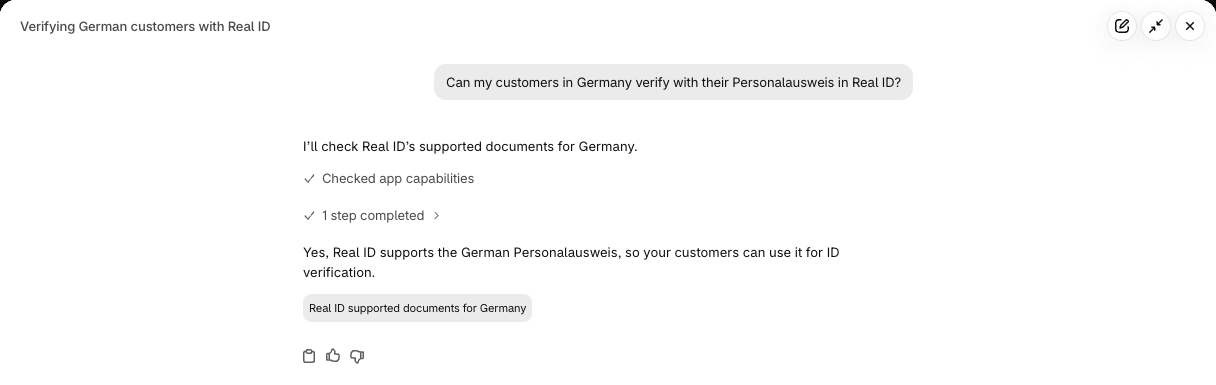
| Which IDs are accepted | "Can my customers in Germany verify with their Personalausweis?" |
Each answer links to the ID check in Real ID, so you can open it to see the photos and approve or reject it.
Why a check failed or needs review
Sidekick explains failed and in-review checks in plain language. For example:
- "The customer provided an expired ID."
- "This customer provided a photo of their ID when prompted for their headshot."
- "The name on the provided ID does not match the customer's name on the billing address."
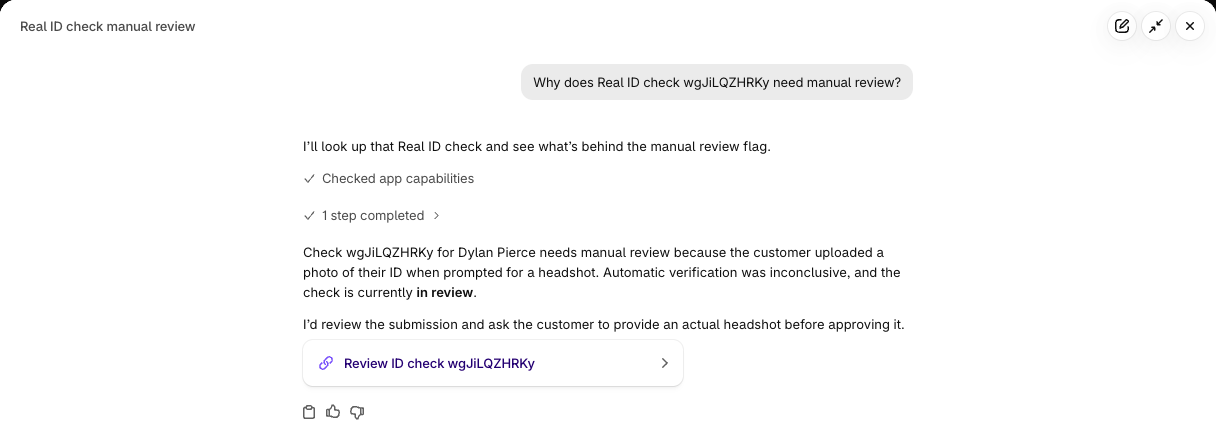
Sometimes the automated check is inconclusive and doesn't record a specific cause. When that happens, Sidekick says so instead of guessing, and points you to the check so you can review the photos yourself.
Supported ID documents
Sidekick uses the same list as our supported ID documents page. You can ask about a country, a document type, or a state or province:
- "What ID documents does Real ID accept in Ontario, Canada?"
- "Is Real ID able to verify a Texas handgun license?"
- "Can customers use a library card?"
Sidekick uses the names your customers know, like Personalausweis in Germany or DNI in Spain. If a document isn't on the list, Sidekick tells you and suggests one that is.
Staff permissions
Sidekick follows your staff permissions. It answers as the staff member who's asking:
- The View ID checks permission is required to look up, list or explain checks. Staff without it get a message asking them to contact the store owner.
- Supported ID documents are public, so anyone can ask about them.
- The store's account owner always has full access.
What Sidekick can and can't see
Sidekick only gets a summary of each ID check: its status, the reason it failed, dates, and the order and customer it belongs to. It never sees ID photos, selfies, dates of birth, document numbers or addresses. To see those, open the ID check in Real ID.
Troubleshooting
Sidekick answers without using Real ID. Mention "Real ID" in your question, for example "In Real ID, which checks need review?" Sidekick connects up to 20 apps for each staff member, so naming the app helps it choose.
Sidekick says you don't have permission. Ask your store owner to give you the View ID checks permission in Real ID under Settings > Staff.
Sidekick can't find an order. Make sure the order has an ID check in Real ID. If the customer verified on a different order, ask about the customer instead.