Viewing ID Checks
Real ID provides multiple ways to view and manage ID verification checks for your BigCommerce store.
- Inside the Real ID App
- From the BigCommerce orders dashboard
- From the BigCommerce customers dashboard
From the Real ID App
The primary way to view all ID checks is through the Real ID app dashboard.
Accessing the Dashboard
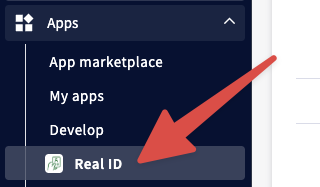
- Log in to your BigCommerce admin panel
- Navigate to Apps > Real ID
- Click on ID Checks in the navigation
Dashboard Features

The ID Checks dashboard provides:
- List View: See all ID checks with status, customer name, order number, and date
- Filtering: Filter by status (Verified, Failed, In Progress, In Review)
- Search: Search by customer name, email, or order number
- Bulk Actions: Archive or unarchive multiple checks at once
Check Details Page
Click on any ID check to view its full details:
- Customer information (name, email, phone)
- Verification status and confidence scores
- Submitted photos (ID front/back, selfie, signature)
- Document details extracted from the ID (name, DOB, expiration)
- Timeline of events (when sent, opened, submitted, verified)
- Actions (approve, reject, send reminder, archive)
From Order Details
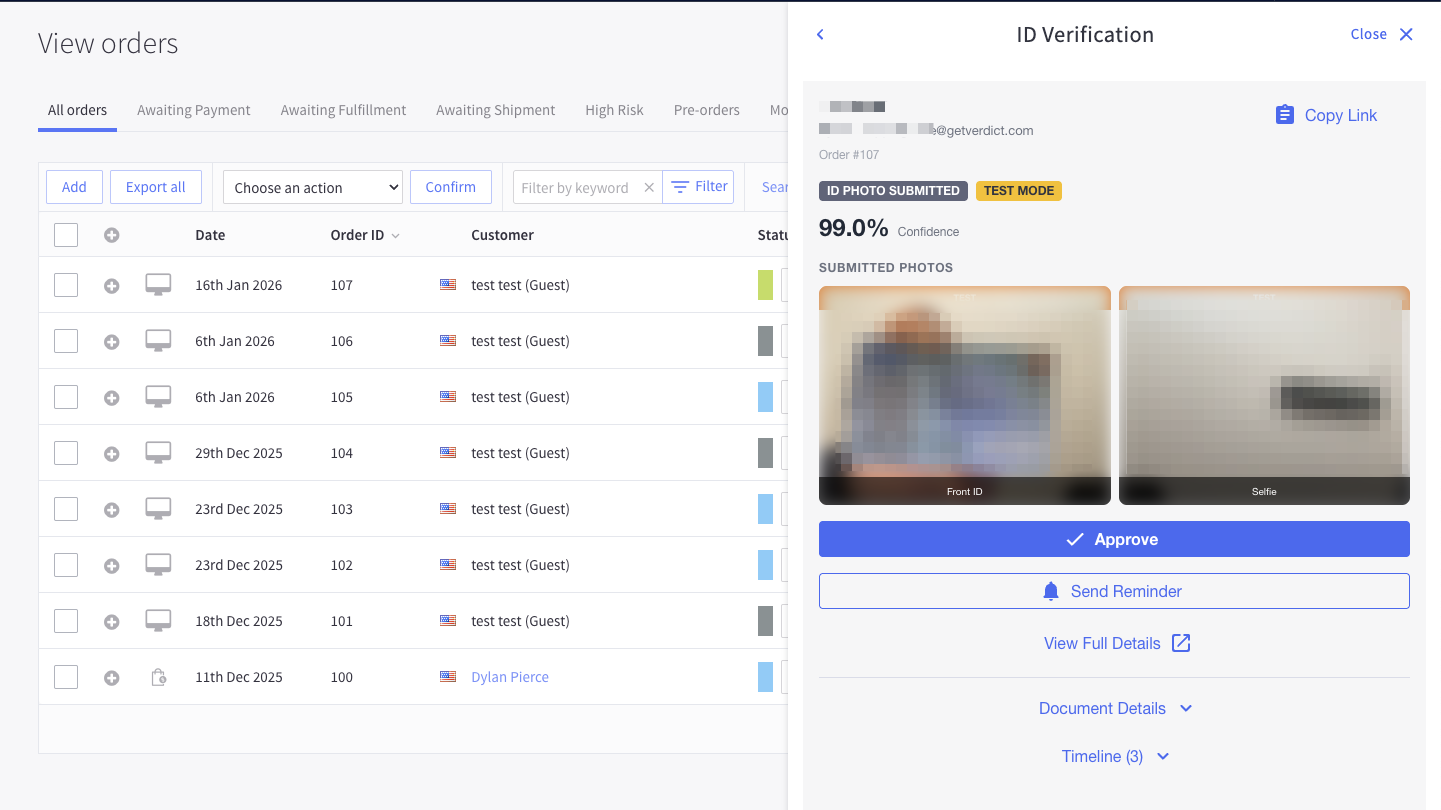
Real ID adds an ID Verification panel directly to your BigCommerce order pages, allowing you to view verification status without leaving the order context.
How It Works
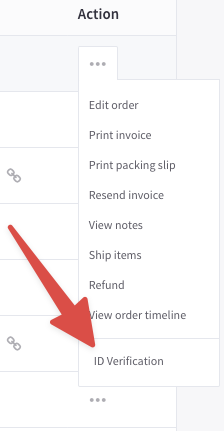
When viewing an order in your BigCommerce admin, you'll see an "ID Verification" menu item in the order actions. Clicking it opens a side panel with:
- Customer Info: Name, email, and order number
- Verification Status: Current status badge (Verified, In Progress, Failed, etc.)
- Confidence Score: Overall verification confidence percentage
- Submitted Photos: Thumbnails of ID and selfie photos
- Quick Actions: Approve, reject, or send reminder buttons
- Copy Link: Copy the verification link to share with the customer
Empty State
If the order doesn't have an associated ID check, the panel displays a quick form to create one. The form is pre-populated with the customer's information from the order, allowing you to send a verification request immediately.
Navigating to Full Details
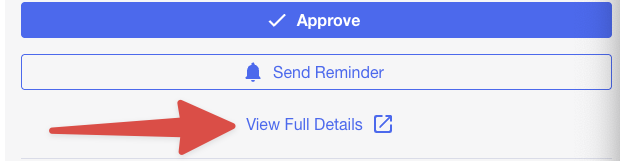
Click View Full Details in the panel to open the complete check details page in the Real ID app.
From Customer Details
Similar to orders, Real ID adds an ID Verification panel to BigCommerce customer pages, showing the customer's verification history.
Customer Panel Features
The customer panel shows:
- Verification Status: Whether the customer is verified or not
- Customer Info: Name and email from their most recent check
- Latest ID Check: The most recent verification with status and confidence score
- Verification History: A list of all ID checks for this customer
Creating a Check for a Customer
If the customer has no verification history, the panel displays a form to create a new ID check pre-populated with the customer's information.
This is useful for:
- Proactively verifying customers before they place orders
- Re-verifying customers whose previous verification expired
- Verifying customers for non-order-related purposes
For developers and advanced integrations, you can retrieve ID checks programmatically using the Real ID REST API.
See the REST API documentation for details on authentication and available endpoints.
Summary
| Method | Best For |
|---|---|
| Real ID App | Full management, bulk operations, detailed analysis |
| Order Panel | Quick status checks while processing orders |
| Customer Panel | Viewing customer verification history |
| REST API | Custom integrations, automation, reporting |