Order Status Syncing
Real ID can automatically update your BigCommerce order statuses based on the ID verification results. This helps you track which orders are waiting for verification, which have passed, and which have failed — all from your BigCommerce dashboard.
Order status syncing is disabled by default. You'll need to enable it in your Real ID settings to start using this feature.
How it works
When a customer needs to verify their ID, Real ID can automatically update the order status at each step of the verification process:
Status flow explained
- Order placed — Customer completes checkout
- Verification starts — Order moves to your "in progress" status (default: Manual Verification Required)
- Customer submits ID — Order stays in progress while being reviewed
- Verification completes:
- ✅ Passed — Order moves to your "success" status (default: Awaiting Fulfillment)
- ❌ Failed — Order moves to your "failed" status (default: Declined)
Setting up order status syncing
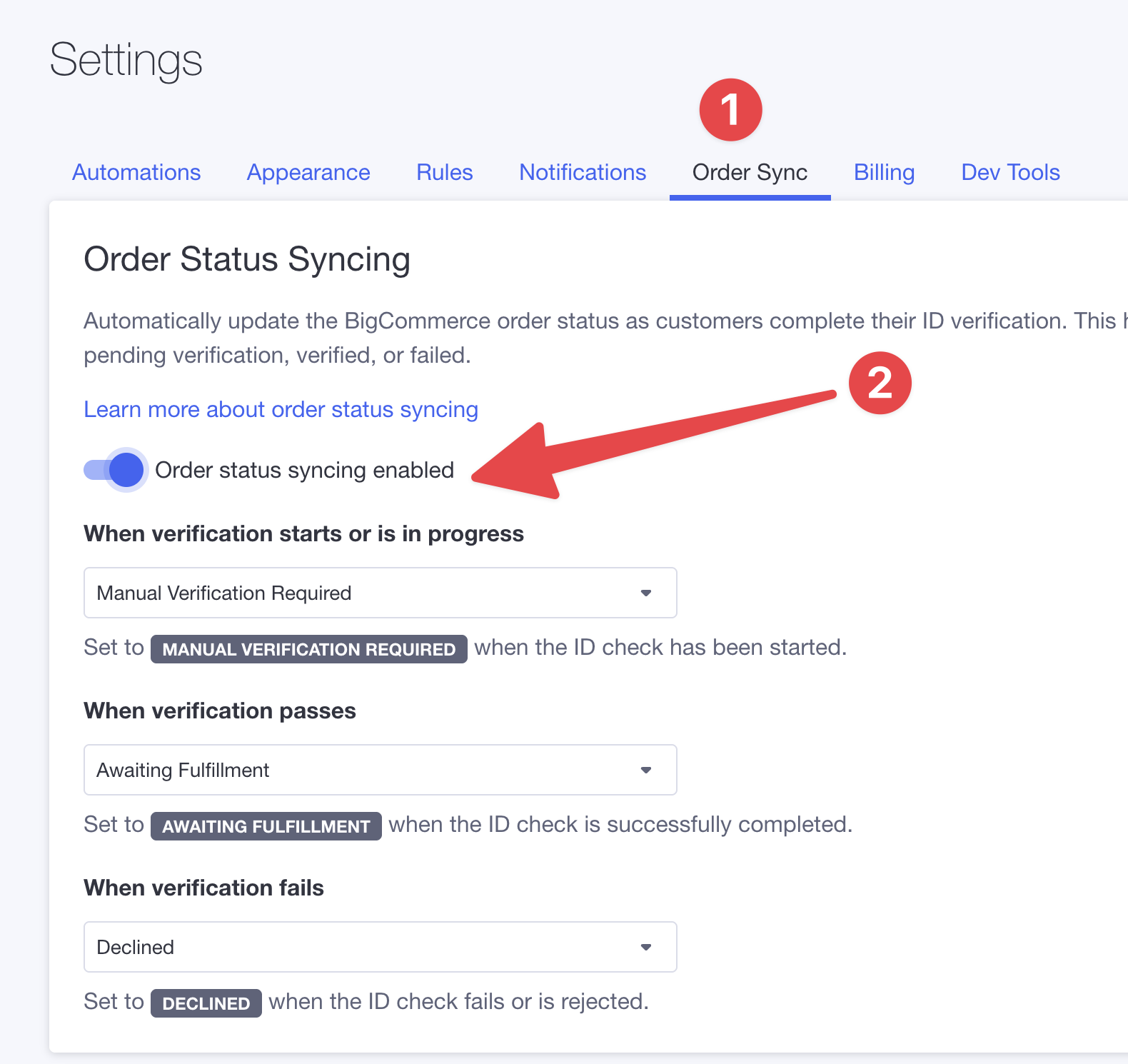
- Open your Real ID app in BigCommerce
- Go to Settings
- Click the Order Sync tab
- Toggle Order status syncing to enabled
Choosing your order statuses
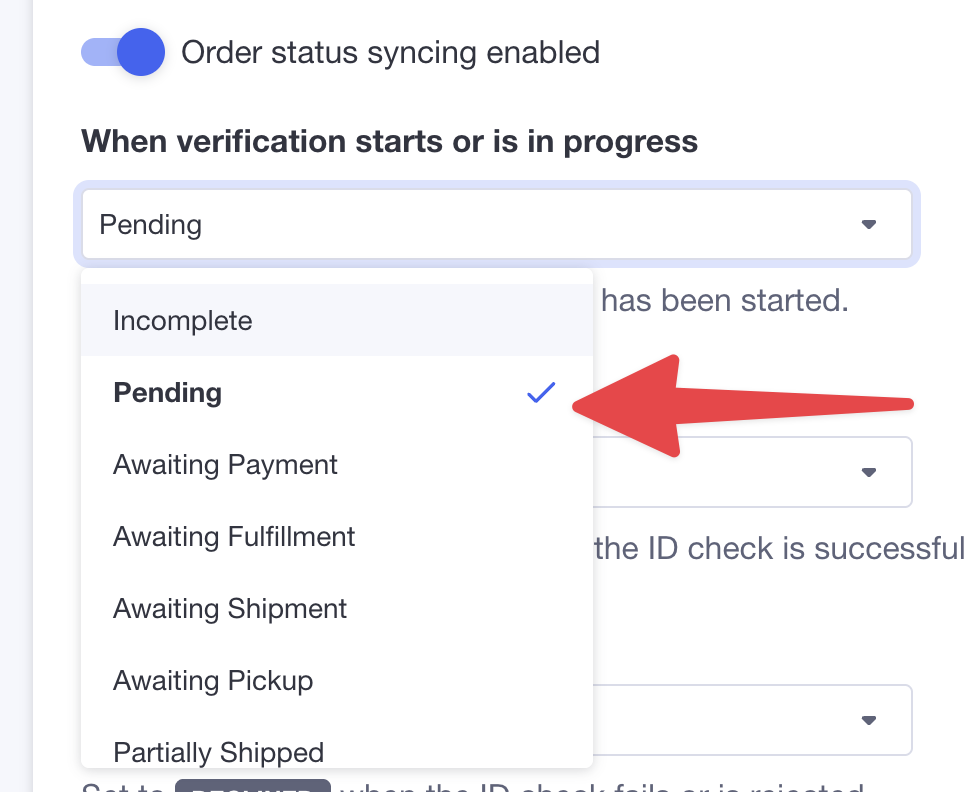
You can customize which BigCommerce order status is assigned at each stage:
| Verification Stage | Default Status | When it's applied |
|---|---|---|
| In Progress | Manual Verification Required | When the ID check starts or customer is submitting photos |
| Passed | Awaiting Fulfillment | When the customer successfully verifies their ID |
| Failed | Declined | When verification fails or is rejected |
If you've created custom order statuses in BigCommerce, they'll automatically appear in the dropdown options.
Order Protection
One of the most important features is Order Protection. This prevents Real ID from accidentally changing the status of orders that have already been processed.
Why is this important?
Imagine this scenario:
- Customer places an order and passes ID verification
- You ship the order (status: Shipped)
- Days later, something triggers the ID check to re-sync
- Without protection, the order could move back to Awaiting Fulfillment
- Your fulfillment team might accidentally ship it again! 📦📦
Order Protection prevents this by never changing orders that are already in certain "final" statuses.
Default protected statuses
By default, Real ID will not change orders that are already:
- Shipped — Order has been shipped to the customer
- Partially Shipped — Some items have been shipped
- Refunded — Order has been refunded
- Cancelled — Order was cancelled
- Completed — Order is fully complete
- Partially Refunded — A partial refund was issued
Customizing protected statuses
You can add or remove protected statuses in the Order Protection section of the Order Sync settings:
- Go to Settings → Order Sync
- Scroll to the Order Protection section
- Check or uncheck statuses based on your workflow
We strongly recommend keeping Shipped, Cancelled, and Refunded as protected statuses to prevent fulfillment errors.
Understanding the status flow
Here's a complete picture of how order statuses flow through the ID verification process:
Frequently Asked Questions
Will enabling this feature cancel orders or issue refunds?
No. Real ID only changes the order status field. It does not cancel orders, issue refunds, or modify payment transactions in any way.
What happens if I manually change an order's status?
Real ID will respect your manual changes. However, if the ID verification status changes later (for example, a staff member manually approves a failed check), Real ID may update the status again — unless the order is in a protected status.
Can I use custom order statuses?
Yes! Any custom order statuses you've created in BigCommerce will automatically appear as options in the Real ID settings.
What if an order is already shipped when verification completes?
If the order is in a protected status (like Shipped), Real ID will not change its status. The verification result will still be recorded in the order notes, but the status will remain unchanged.
How do I know if an order's status was changed by Real ID?
Real ID adds a note to the order each time it processes an ID verification. You can view these notes in the order details within BigCommerce.
Does this work with fulfillment apps like ShipStation?
Yes! The order status changes made by Real ID are standard BigCommerce status updates. Any app that reads order statuses (like ShipStation, ShipBob, etc.) will see the updated status.
The default "Failed" status is Declined, which will prevent most fulfillment apps from shipping the order. If you prefer a different workflow, you can change this to Manual Verification Required or a custom "On Hold" status.
Troubleshooting
Order status isn't changing
Check the following:
- Is order status syncing enabled? Go to Settings → Order Sync and ensure the toggle is on.
- Is the order in a protected status? Orders in protected statuses won't be updated.
- Is the order a BigCommerce order? This feature only works with orders from your BigCommerce store.
Order moved to wrong status
If an order was moved to an unexpected status:
- Check if the ID verification result changed (view the check details in Real ID)
- Review your status mapping in Settings → Order Sync
- Consider adding that status to your protected list if needed
Related Documentation
- After Checkout Verification — Setting up ID verification after customers complete checkout
- Before Checkout Verification — Requiring ID verification before customers can checkout